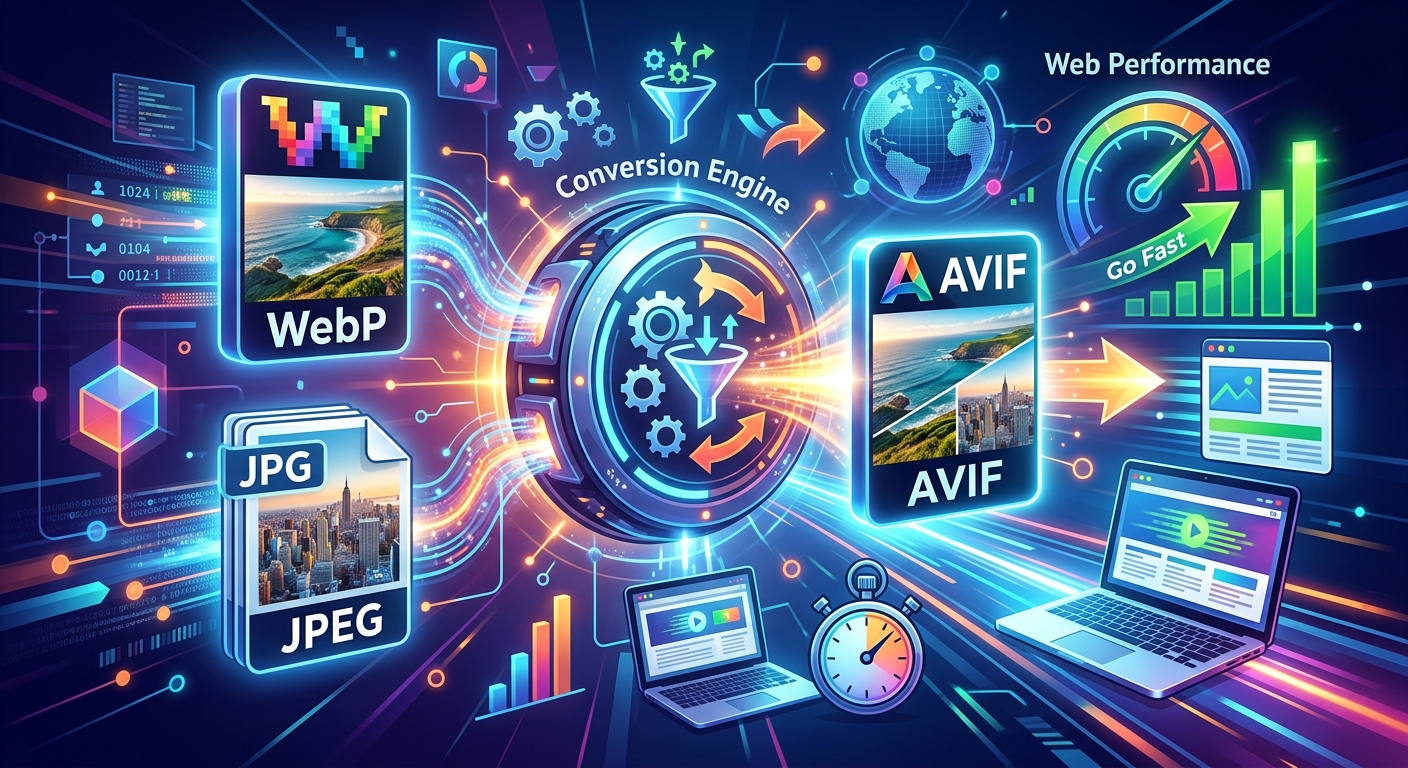
Your image library probably looks like most: a folder of JPEGs from older photo shoots, WebP files exported from modern design tools, and a spread of PNGs for logos and UI elements. Converting that entire collection to AVIF can cut file sizes dramatically and sharpen your page performance scores. But the source format you start from matters more than most guides let on. Pick the wrong path and you stack compression artifacts, end up with muddy images, and wonder why AVIF did not deliver what everyone promised.
Key Conversion Points
- JPEG and PNG files convert to AVIF directly without needing any intermediary format.
- Lossy WebP originals should route through lossless PNG first to prevent artifact buildup.
- AVIF commonly cuts file size by 30 to 50 percent compared to JPEG at similar visual quality.
What AVIF Actually Does to File Size
AVIF is built on the AV1 video codec. It compresses still images using technology originally designed for video frames. The result is a format that handles gradients, skin tones, and detailed textures far better than JPEG does at the same file size. Where JPEG starts showing blocky artifacts around 60 to 70 percent quality settings, AVIF holds up cleanly at quality levels that produce a fraction of the bytes.
That efficiency directly affects how fast a browser can fetch and render images. For pages where a large image is the Largest Contentful Paint (LCP) element, shaving kilobytes off that image translates into measurable improvements in real-user speed scores. Google's official documentation on page experience signals treats image loading time as one of the most direct levers available to developers, and next-gen formats are a primary recommendation.
Getting that payoff depends on starting from the right source material. JPEG, PNG, and WebP each behave differently when fed into an AVIF encoder, and mixing up the steps costs you quality you cannot get back.
Converting JPEG Images to AVIF
JPEG is the most common source format in any established image library. The good news is that JPEG converts to AVIF without any intermediate step. You feed a JPEG into an AVIF encoder, set your quality target, and the encoder resamples the image data directly. The JPEG was already lossy, so you are not starting from a perfect original. But the AVIF encoder works from the best data the JPEG carries, and the result is still significantly smaller than the original JPEG at equivalent perceived quality.
A few practical things to keep in mind when converting JPEGs:
- Use the highest-quality JPEG available as your source, not a thumbnail or a re-saved copy.
- Target an AVIF quality setting between 60 and 80, on a 0 to 100 scale, for photographic content.
- Check the output against the JPEG side by side before running a bulk conversion across your entire library.
- If the original RAW or TIFF file exists, convert from that instead to skip JPEG's compression layer entirely.
Most JPEG-to-AVIF conversions produce noticeably smaller files. Product photos that were 150KB as JPEG often come out under 70KB as AVIF at a quality level that looks identical on screen.
Converting PNG Images to AVIF
PNG files are lossless, which makes them the cleanest possible input for an AVIF encoder. There is no pre-existing compression damage to worry about. The encoder sees the full pixel data and can apply its own compression algorithm from scratch.
PNG-to-AVIF conversion shines with images that have flat color areas, text overlays, and hard edges. Icons, logos, and UI screenshots that lived as PNGs for years can become AVIF files at a fraction of the size without any perceptible quality loss. For photographic PNGs, the savings are even larger because PNG never compressed that type of content efficiently to begin with.
Lossless AVIF is also worth considering for PNGs that need to remain pixel-perfect. The file sizes will be larger than lossy AVIF but still noticeably smaller than a lossless WebP or a standard PNG for the same image.
Why WebP Files Require a Different Approach
WebP looks like a modern format, and in many ways it is. But it carries a hidden problem for anyone converting a WebP library to AVIF: lossy WebP files already contain compression artifacts baked into the pixel data.
When you convert a lossy WebP directly to AVIF, the AVIF encoder processes an image that already has those artifacts embedded. Then it applies its own lossy compression on top. You are compressing a compressed image. The artifacts from both codecs accumulate, and the final AVIF looks noticeably worse than it should for its file size. Flat color areas become blotchy. Fine detail that survived WebP compression gets smeared a second time by the AVIF encoder.
Why PNG Becomes the Middle Step for WebP
The fix is to break the conversion into two stages. First, convert your WebP file to a lossless PNG. That step does not recover any quality that WebP's compression already discarded, but it locks in whatever pixel data remains without adding more compression damage. You now have a clean, lossless file that represents the current state of your image.
From that PNG, your AVIF encoder has a stable base to work from. It applies AVIF compression once, cleanly, and produces the best possible output from the source data you have. Converting through WebP to PNG is the critical link in that chain, and skipping it is the single most common mistake people make when building an AVIF-ready image library.
This two-step approach takes slightly more time than a direct conversion, but the quality difference is visible, especially for images with gradients or detailed textures that WebP already compressed heavily.
Source Format Behavior When Converting to AVIF
| Source Format | Starting Quality | Direct to AVIF? | Recommended Path |
|---|---|---|---|
| JPEG | Lossy | Yes | JPEG straight to AVIF |
| PNG | Lossless | Yes | PNG straight to AVIF |
| Lossy WebP | Lossy | Not recommended | WebP to PNG, then PNG to AVIF |
| Lossless WebP | Lossless | Yes | Direct or via PNG (both safe) |
What These Conversions Do for Core Web Vitals
Core Web Vitals are Google's set of user experience metrics that measure how a page actually feels to load. LCP, which captures how long it takes the largest visible element to appear on screen, is directly tied to image performance for most pages. A hero image that was 300KB as a JPEG can become 130KB as AVIF at no visible quality difference. That reduction shortens the time the browser spends fetching the image before it can render.
Cumulative Layout Shift (CLS) also benefits indirectly. Images that load faster leave less time for the layout to reflow around elements that have not yet arrived. Beyond raw file size, AVIF supports progressive rendering in capable browsers, which means users see something on screen earlier even on slower connections.
The image types that gain the most from this transition are:
- Hero images and full-width banners that dominate the viewport above the fold.
- Product photography in e-commerce grids where dozens of images load in parallel.
- Blog thumbnails and social sharing images that repeat across category and index pages.
A 35 percent reduction in image payload across a page with ten to twenty images can move a Core Web Vitals score from "Needs Improvement" into "Good" territory. The compounding effect across a full library is significant.
Getting Your Entire Library Across the Line
The best time to sort this conversion is before you start batching files, not after. Audit your image library and separate files by format. JPEGs and lossless PNGs can go straight into an AVIF encoder in batches. Lossy WebP files need their two-step path. If you have lossless WebP files, you can convert them directly, but routing them through PNG first does no harm and keeps your workflow consistent.
Once your source files are sorted correctly, the conversion itself is straightforward. Browser-based tools handle individual files efficiently. For larger libraries, command-line tools and build pipeline integrations let you process hundreds of images in a single pass. Either way, the quality decisions you make before you start, particularly how you handle WebP files, determine whether your AVIF images look as good as they should.
The conversion effort pays off in ways you can measure. Faster LCP scores, smaller payloads, and images that hold up at modern screen resolutions. It is a one-time process for existing images, and once your pipeline handles new uploads automatically, the work sustains itself without any extra steps.