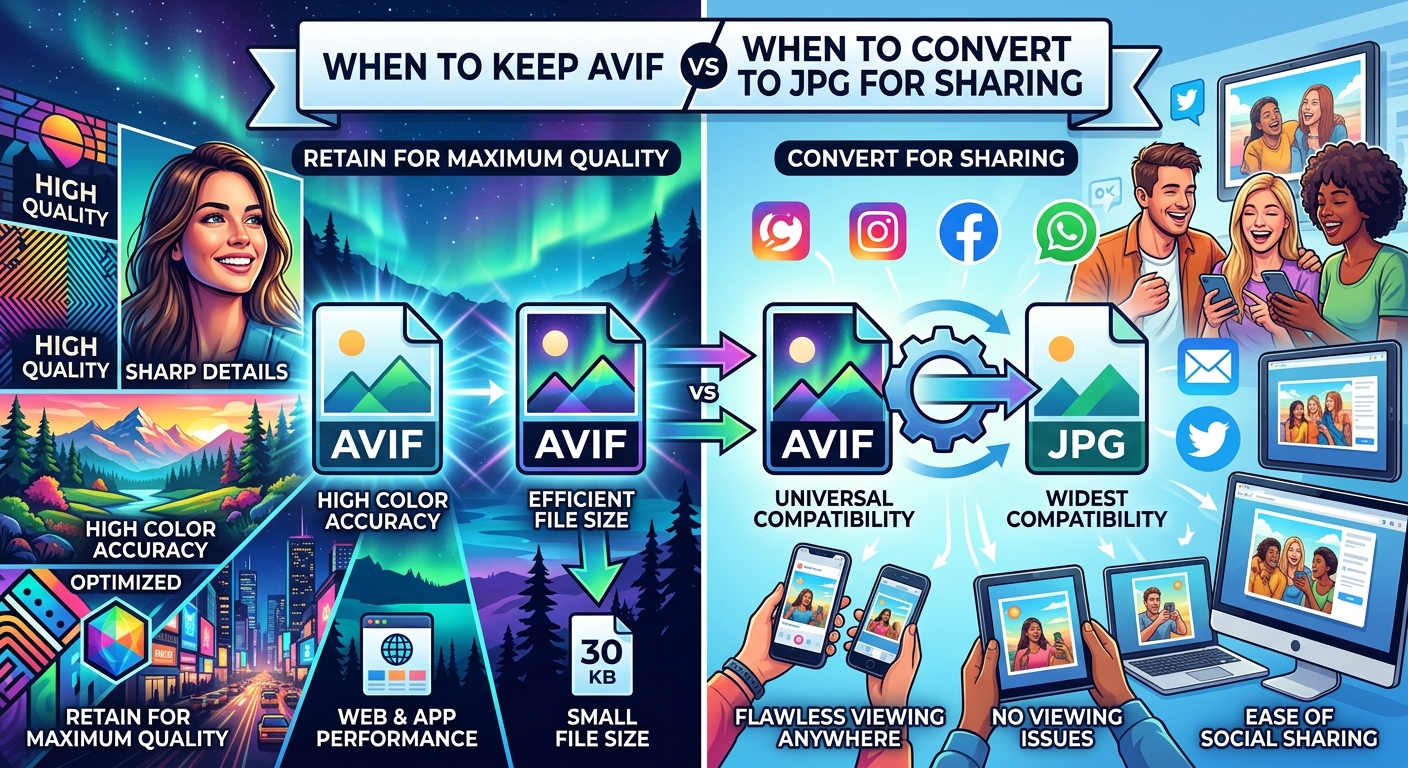
Your website image looks sharp and loads efficiently. Then a client asks for a copy, and their upload form rejects the AVIF file. The image itself is fine. Its format simply does not fit the next step. You can keep the AVIF version on your website and create a separate JPG for the person or app that needs it. The trick is knowing when to make that copy and what to check before sending it.
Keep the Web Version, Share a Compatible Copy. Keep AVIF where your website supports it and where it delivers a useful balance of quality and file size. Make a JPG copy when a client, upload form, or editing app requires it. Preserve your original, export at the dimensions the recipient needs, and inspect the result before sharing. Pay special attention to transparent areas, fine details, color changes, and upload limits. One image can serve different destinations through separate files.
Keep AVIF When It Works for Your Website
AVIF is often a good fit for photographic website images. Its compression can produce smaller files than JPEG at a comparable visual quality, although the result depends on the image and export settings. Product photos, travel images, and large editorial pictures are useful candidates. The decision should come from comparing actual exports, rather than assuming one format always wins.
If your website already displays an AVIF image correctly, a client's request for a JPG does not require replacing it. Keep the web asset in place. Create a delivery copy for that client. This preserves the work you have already done to balance appearance and download size.
Check the whole publishing path before relying on AVIF. Your content management system needs to accept the file. Any thumbnail generator or image processing service also needs to handle it. Finally, test the published page in the browsers your audience uses. A successful upload alone does not prove that every generated image displays correctly.
A website can also use the HTML picture element to offer AVIF with a JPEG fallback. This gives browsers a choice of supported sources. Each version should show the same crop and have suitable dimensions. Maintain the fallback as part of your publishing workflow instead of treating it as a forgotten spare.
Create a JPG When the Destination Needs One
Convert for a concrete reason. A client might need a photo for a presentation. A marketplace might accept JPEG uploads but reject AVIF. An older desktop application might fail to open the file. In those situations, JPG is a practical delivery format because it is widely accepted across image workflows.
Ask what the recipient plans to do with the image. A presentation slide, a small profile photo, and a printed brochure have different requirements. The destination determines the dimensions and quality you should export. Sending a full-resolution image for a tiny avatar wastes space. Sending a small website thumbnail for a large print leaves the recipient short of detail.
JPEG and JPG refer to the same image format. The filename extension may be .jpeg or .jpg, but that difference does not represent a separate compression method. Follow the extension requested by the destination if its instructions are specific.
Changing the filename from .avif to .jpg does not convert the image. The file needs to be decoded and saved in JPEG format. A renamed AVIF can still fail to open, even though its filename appears to match the upload requirement.
Which Version Fits the Next Step?
| Destination | Format Choice | What to Check |
|---|---|---|
| Website photo with a tested image pipeline | Keep AVIF if its quality and size suit the page. | Published appearance, generated thumbnails, and fallback behavior. |
| Client presentation or routine photo handoff | Create a JPG copy if it fits the recipient's requirements. | Requested dimensions, visible detail, and successful opening. |
| Upload form that rejects AVIF | Export JPG when JPEG is an accepted format. | File size limit, crop, and pixel dimensions. |
| Logo or cutout that needs transparency | Keep a transparent format, or flatten onto an agreed background for JPG. | Background color and the edges around the subject. |
Preserve Your Source Before Making a Sharing Copy
Keep the original image and the website export separate from your delivery files. A simple naming pattern helps: product-front-web.avif and product-front-client.jpg tell you what each file is for. Store them in separate folders if you regularly prepare client handoffs.
If you still have a high-quality source photo or design export, use it to create the JPG. That avoids building a new lossy file from an already compressed website version. Converting AVIF to JPG is still useful when AVIF is the only copy available, but it cannot restore detail removed during an earlier export.
For a routine handoff, AVIF to JPG offers a conversion option. Create the JPG as a separate file, then check the downloaded result before sharing it. Treat conversion as the start of the delivery check, rather than assuming that a completed download means the image is ready.
Choose the intended dimensions before adjusting compression, when your conversion workflow allows it. Keep the aspect ratio intact unless the destination requires a particular crop. Stretching an image to meet width and height requirements can distort faces, products, and text.
Inspect Quality at the Size People Will Use
Open the AVIF and JPG side by side at matching dimensions. Check them at their intended display size first. That answers the useful question: will the recipient see a clean image in their actual workflow?
Next, inspect the JPG at 100 percent zoom, where each image pixel maps to a display pixel. Look at areas that tend to reveal compression damage. Small lettering may become fuzzy. Hair and fabric can lose texture. Sharp edges can develop faint halos. Smooth skies and studio backgrounds may show visible bands or patches.
Avoid judging only from a tiny thumbnail. It can hide problems that become obvious in a presentation or product listing. Extreme magnification can create the opposite problem by making minor artifacts seem more serious than they are at normal viewing size.
Check color as part of the same review. Compare skin tones, neutral backgrounds, and any product colors that need to stay accurate. If your source uses HDR or a wide color gamut, the conversion settings can affect the resulting appearance. For a routine sharing workflow, an SDR JPG exported in sRGB is often a useful target. Confirm the result visually in the app where it will be used.
Compression settings are not universal. A quality value in one converter may produce a different result from the same value in another. Use the finished image as your guide. Raise quality if visible damage matters, then check whether the file still fits the destination's limits.
Check File Size Against the Upload Limit
A JPG copy may be larger than its AVIF source. That does not mean the conversion failed. Different formats need different amounts of data to preserve a similar appearance. Compare the final JPG with the recipient's requirements, rather than expecting it to match the AVIF's file size.
Read the destination's limits before exporting. Some forms restrict file size. Others also require minimum dimensions or a specific aspect ratio. An image can meet the size limit and still be rejected because it is too narrow or has the wrong shape.
If the JPG is too large, first check whether its dimensions exceed what the recipient needs. Reducing an oversized image can save substantial space. Then adjust JPEG quality in small steps and inspect the result again. Avoid repeatedly opening and resaving the same JPG, since repeated lossy encoding can add visible damage.
For batches, test a few representative images before converting the entire folder. Include a detailed photo, an image with a smooth background, and anything containing text. One export setting may handle ordinary photos nicely while damaging a screenshot or a graphic with fine lines.
Resolve Transparency Before You Share
AVIF can contain transparency. JPEG cannot. A transparent AVIF must therefore be flattened onto a solid background when it becomes a JPG. The background choice is part of the output, and it deserves an explicit check.
A product cutout intended for a white listing page may work with a white background. A logo intended for a dark presentation slide may need a different treatment. If the recipient needs to place the image over changing backgrounds, a transparent PNG may be a better delivery choice, provided the destination accepts it.
Do not assume the converter will choose the background you want. Inspect the corners and the empty space around the subject. Then check soft shadows, hair, and antialiased edges. A background that looks acceptable in the center can still leave a distracting outline around the subject.
Once flattened, the JPG no longer has a transparent layer that the recipient can switch off. Keep the transparent source available. It lets you produce another copy with a different background without trying to remove the background from the JPG.
Finish the Handoff in the Recipient's Workflow
Open the final JPG after downloading it. Confirm its filename, dimensions, and file size. If it is headed for an upload form you can access, test the upload and inspect the preview. Some platforms crop or recompress images after accepting them.
Give the file a name that helps the recipient use it correctly. A filename containing the subject and intended use is more helpful than an automatic download number. If you provide multiple sizes, distinguish them clearly so a small preview does not accidentally become the print file.
Keep the handoff message brief. Mention the dimensions or background color when those details affect use. There is usually no need to explain the website's image pipeline. The recipient mainly needs a file that opens, looks right, and fits their task.
Let Each Copy Do Its Own Job
Keep AVIF on your website when testing shows that it serves the page effectively. Create JPG copies when the next destination calls for them. Those choices can exist side by side without changing your entire image library.
The reliable workflow is straightforward: preserve the source, export for the destination, inspect quality, confirm file size, and resolve transparency. Your website keeps its optimized asset. Your client receives a usable copy. Future requests remain manageable because you still have the right files to create another version.