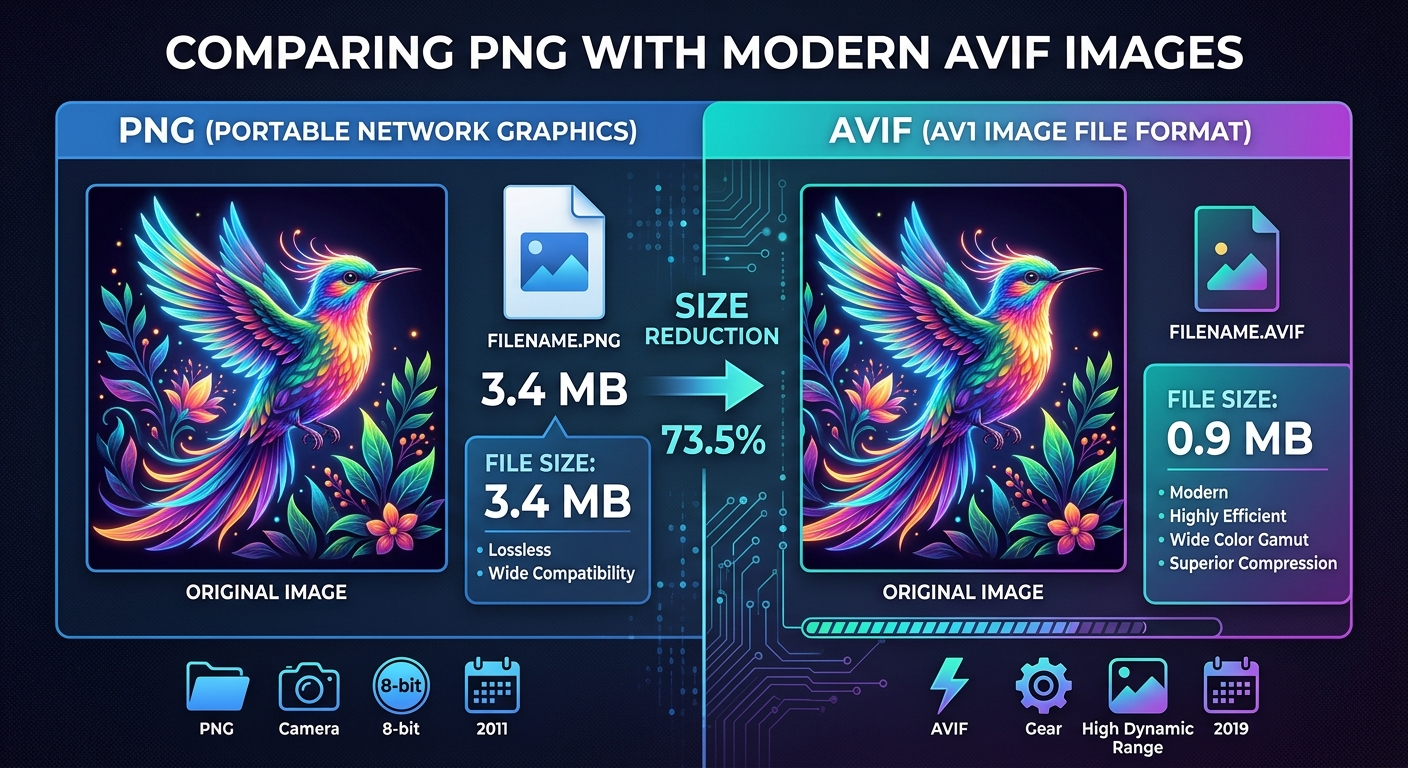
A product image can look perfect in your editor and still make a page feel sluggish. Convert it too aggressively, though, and fine lettering turns soft or a transparent edge looks rough. Comparing PNG with AVIF starts with that tradeoff: which format delivers the image your reader needs, at a sensible size, through software that can actually display it?
Three Decisions Before You Convert
- Keep PNG when exact pixels and dependable editing matter.
- Test AVIF when smaller delivery files could help your pages.
- Preserve originals and inspect every converted result.
PNG and AVIF Solve Different Image Problems
PNG stores raster images with lossless compression. Decoding a correctly encoded PNG restores its encoded pixel values without compression damage. W3C’s PNG specification also documents support for transparency and color information. That combination makes PNG useful for screenshots, interface graphics, and images that need clean edges.
Lossless does not mean every conversion into PNG preserves everything about its source. A converter can resize an image, reduce its bit depth, change its color space, or discard metadata before encoding. The PNG file then preserves that changed result. File format and conversion settings are separate parts of the decision.
AVIF uses image compression based on AV1 technology. It supports lossy and lossless encoding, along with transparency. Its practical appeal for websites is the chance to deliver detailed images using fewer bytes at an acceptable visual quality. Actual savings depend on the image, encoder, and settings.
A photograph exported as PNG may contain far more data than a page needs. An AVIF version can be a useful delivery copy. A screenshot containing tiny colored labels presents a different challenge. Aggressive compression may damage exactly the details that make the screenshot useful.
Compare the Features That Affect Your Work
Neither format wins every category. Use the following differences to decide which files deserve a conversion test and which should stay in their current form.
PNG and AVIF for Everyday Image Tasks
| Decision Point | PNG | AVIF |
|---|---|---|
| Compression | Lossless pixel storage | Lossy or lossless, depending on encoding settings |
| Photographic Content | Can produce large delivery files | Often worth testing for smaller delivery files |
| Text and Fine Lines | Useful for preserving crisp pixel detail | Requires careful checks at chosen quality settings |
| Transparency | Supported | Supported, but converter behavior needs checking |
| Sharing and Editing | A dependable option across many established workflows | Verify support in each receiving application |
Measure File Size Without Changing the Test
Start with one source image and export both candidates at identical pixel dimensions. Comparing a full-size PNG with a much smaller AVIF mixes resizing benefits with compression benefits. You need to know which change produced the saving.
For a website image, choose dimensions based on its actual display requirements. A banner displayed at 1,200 pixels wide may need a larger source for high-density screens, but sending a camera-sized original to every visitor is rarely a useful default. Responsive image variants help match downloads to the layout.
Then compare quality at the intended display size. Suppose a PNG occupies 900 KB and an acceptable AVIF occupies 180 KB. That hypothetical conversion cuts transferred image data by 80%. Your files may behave very differently. Flat graphics can already compress efficiently as PNG, and an AVIF export is not guaranteed to be smaller.
Keep a record of dimensions, file sizes, and export settings. Quality numbers are not universal across converters. A setting of 75 in one tool does not promise the same result as 75 elsewhere.
Choose PNG for Details That Must Stay Exact
Documentation screenshots are a strong reason to keep PNG in your workflow. Readers may need to identify a one-pixel border, read a small menu label, or distinguish adjacent status colors. Compression artifacts around those details can make instructions harder to follow.
Charts, pixel art, and interface captures deserve the same care. PNG is also useful as an exchange format when someone needs to open and edit a raster image in familiar software. Keep the editable design document separately if layers, text objects, or vectors matter.
Converting an already compressed AVIF into PNG does not restore missing texture or sharpen damaged lettering. It creates a lossless copy of the decoded result. The larger output may improve compatibility, but it does not recover the original source.
Use AVIF Where Visual Quality Survives Compression
Photography, editorial images, and product imagery are useful AVIF test candidates. These files often contain enough visual complexity for modern compression to offer meaningful savings. Start with a representative sample instead of converting an entire library immediately.
Inspect fabric, hair, foliage, skin, and smooth backgrounds. Watch for smeared texture, banding, and altered edges. Product labels need particular attention because a photo can look attractive overall while its printed text becomes difficult to read.
AVIF encoding can take longer than PNG encoding, depending on settings and implementation. For a small batch, that delay may be minor. For a large catalog, conversion time becomes part of the workflow. Measure a sample batch before scheduling a full library conversion.
Fit Browser Tools Into the Conversion Workflow
For readers working through avif.tools, the free browser-based toolkit fits naturally between choosing a format and validating an export. It provides a convenient place to create conversion candidates without building a command-line workflow first. Treat the downloaded image as a result to inspect before using it in production.
Conversion direction matters. PNG to AVIF is usually a delivery optimization experiment. AVIF to PNG is often a compatibility step for an editor, publishing system, or recipient that cannot use the original file.
If your immediate task is producing a compatible PNG copy, a free browser-based PNG conversion tool can fit that handoff. Keep the source file, download the result, and open it in the application that prompted the conversion. Successful downloading alone does not establish that the handoff worked.
Changing a filename from .avif to .png does not convert anything. The encoded contents must change. A renamed file can still fail to open because its internal format remains AVIF.
Check Privacy Before Selecting Sensitive Files
Browser-based does not automatically mean files stay on your device. A service may process images locally, send them to a server, or use different approaches for different operations. Read its processing description and privacy policy before selecting private material.
For developers, browser network tools can help inspect whether a conversion sends image data out during a test. That check supplements the service’s documentation. It does not replace a full privacy assessment.
Use a non-sensitive sample when evaluating an unfamiliar converter. For confidential client work, use a workflow that meets the client’s handling requirements. Check output metadata separately, too. Conversion does not guarantee removal of location data, comments, or other embedded information.
Verify Compatibility Where the Image Will Be Used
A browser opening an AVIF file successfully does not prove that a desktop editor, email client, or CMS can handle it. Compatibility belongs to the complete workflow. Test the applications and devices your audience actually uses.
On Windows, check the specific viewer before assuming an image is damaged. Support can depend on the application, its version, and installed components. A PNG copy can provide a useful handoff when adding AVIF support is inconvenient or unavailable.
For a website, an HTML picture element can offer AVIF with a fallback image. Verify that the fallback loads in a suitable test environment. Keep meaningful alternative text on the image element, regardless of which file format the browser selects.
For WordPress or another CMS, test more than the upload. Confirm thumbnail generation, image editing, responsive variants, and public delivery. Check that your server or CDN returns the correct content type, image/avif, for AVIF files.
Inspect the Output Before Publishing
Reopen each candidate after conversion. Check pixel dimensions, orientation, cropping, and visible content. View it at its intended display size, then inspect sensitive details at full resolution.
Transparent images need testing against both light and dark backgrounds. A pale fringe can disappear against white and become obvious against a dark product card. Confirm that transparency survived and that the converter did not flatten the image onto a solid background.
Compare colors in the destination application. A converter may change profiles, bit depth, or color handling. HDR sources need extra care because a standard PNG export may involve tone mapping and lose the original brightness range.
After publishing, inspect the actual network request. Confirm the browser downloads the expected file and size. Smaller images can help page loading, but Core Web Vitals also depend on layout, loading priority, scripts, and server response. Measure the page instead of treating conversion as a guaranteed score improvement.
Keep PNG Masters and AVIF Delivery Copies
The most dependable choice is often a pair of files with different jobs. Keep the original or a suitable lossless master for future edits. Create an AVIF delivery copy when testing shows a useful size reduction without unacceptable visual changes.
Avoid repeatedly editing and re-encoding lossy exports. Return to the master for each new version. Clear filenames and recorded settings make later updates easier, especially when several people manage the same library.
Choose PNG when dependable pixel preservation or application compatibility drives the task. Choose AVIF when the destination supports it and the checked output earns its place through smaller downloads. Your final decision should come from the image, its destination, and the result you can actually see.